This page gives your review team everything needed to sign in and exercise the app's core function: generating time-based one-time codes (TOTP) for two-factor authentication. It covers test credentials, how to pair an account without a second physical device, and where each screen fits in the flow.
Test credentials
Use these on the app's sign-in screen. This account already has 2FA enabled server-side, so it will walk the reviewer straight into the verification step described below.
- Username / Email
REPLACE_WITH_TEST_EMAIL@skyblue.co.in- Password
REPLACE_WITH_TEST_PASSWORD- TOTP secret (Base32)
JBSWY3DPEHPK3PXP
Note: replace the two placeholder values above with a real reviewer-only test account before publishing this page. Never ship production credentials in a public listing.
How to test 2FA code generation
Skyblue Authenticator is a TOTP generator, similar to Google Authenticator or Authy. It has no independent login of its own — its only job is to produce 6-digit codes for accounts you add to it. Testing it end-to-end takes three steps.
-
1
Sign in
Use the test username and password above on the app's sign-in screen.
-
2
Add an account
If the app prompts you to scan a QR code during setup, camera access isn't strictly required — you can bypass the scanner and enter the secret key manually instead. Look for a "Enter code manually" or similar option on the scan screen, then enter:
JBSWY3DPEHPK3PXP
-
3
Read the generated code
Once the account is added, the app displays a live 6-digit TOTP code tied to that secret, refreshing on a 30-second countdown. This is the code that would be entered on the Skyblue Mail website's Two-Factor Auth screen to complete a sign-in.
Companion flow: enabling 2FA on Skyblue Mail
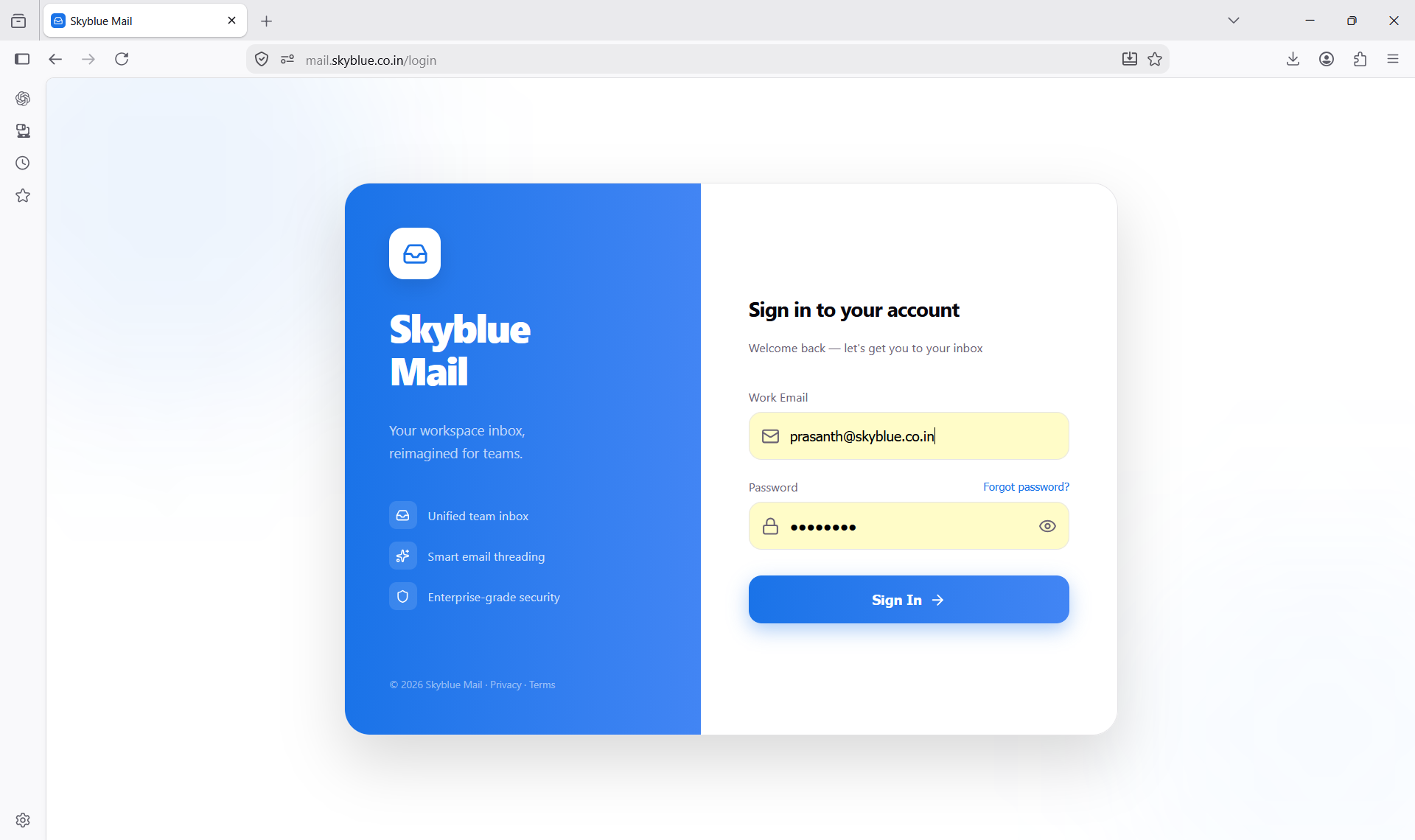
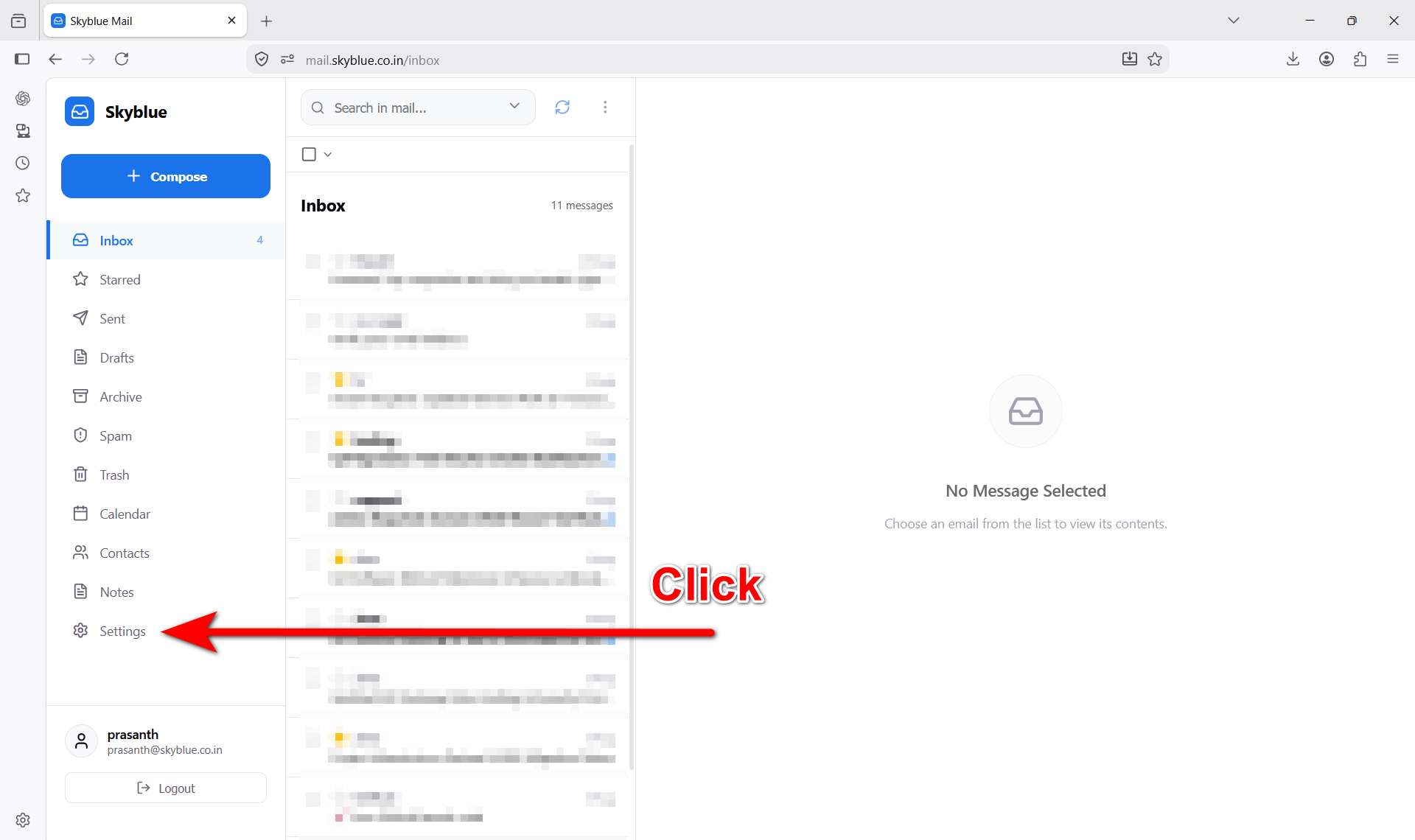
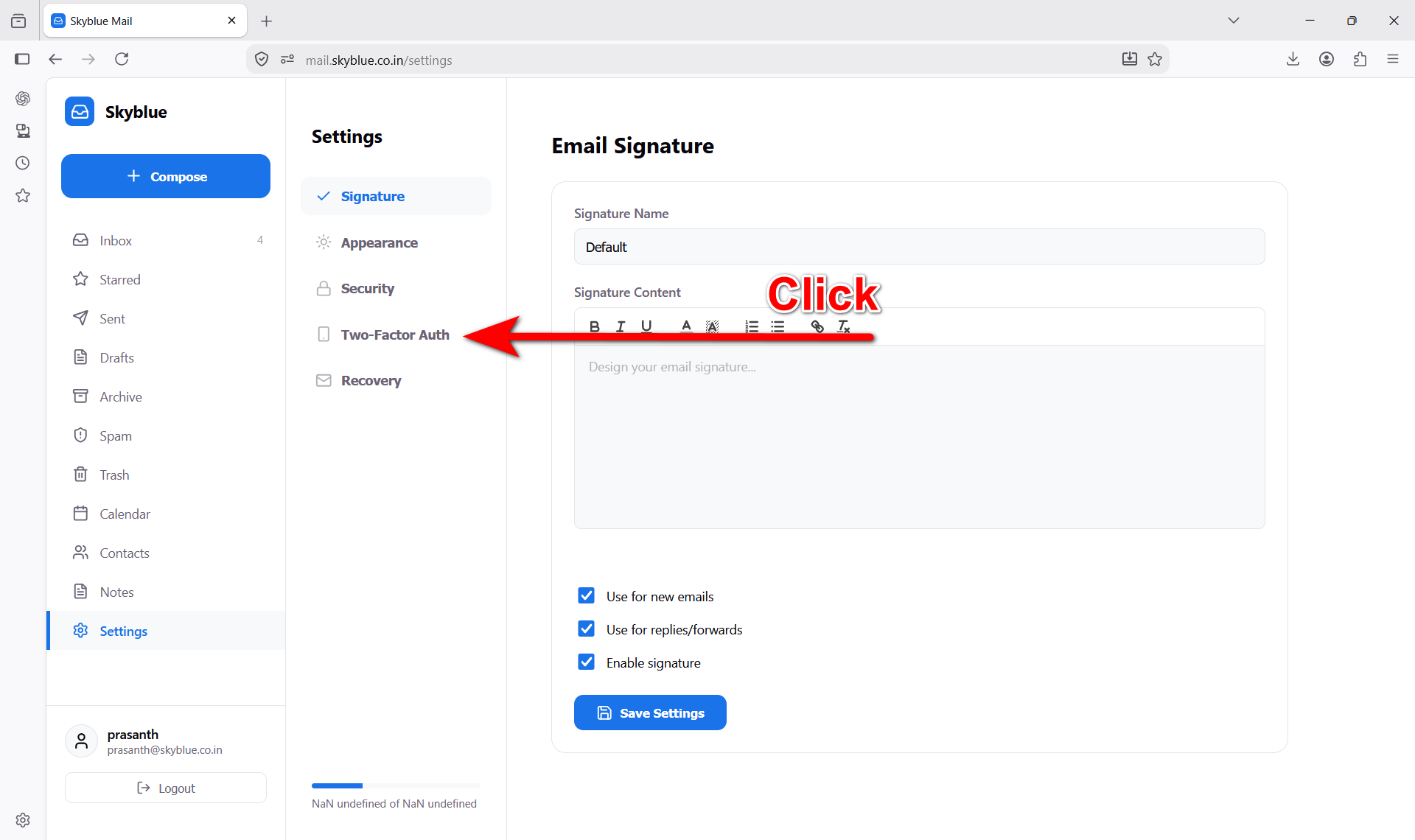
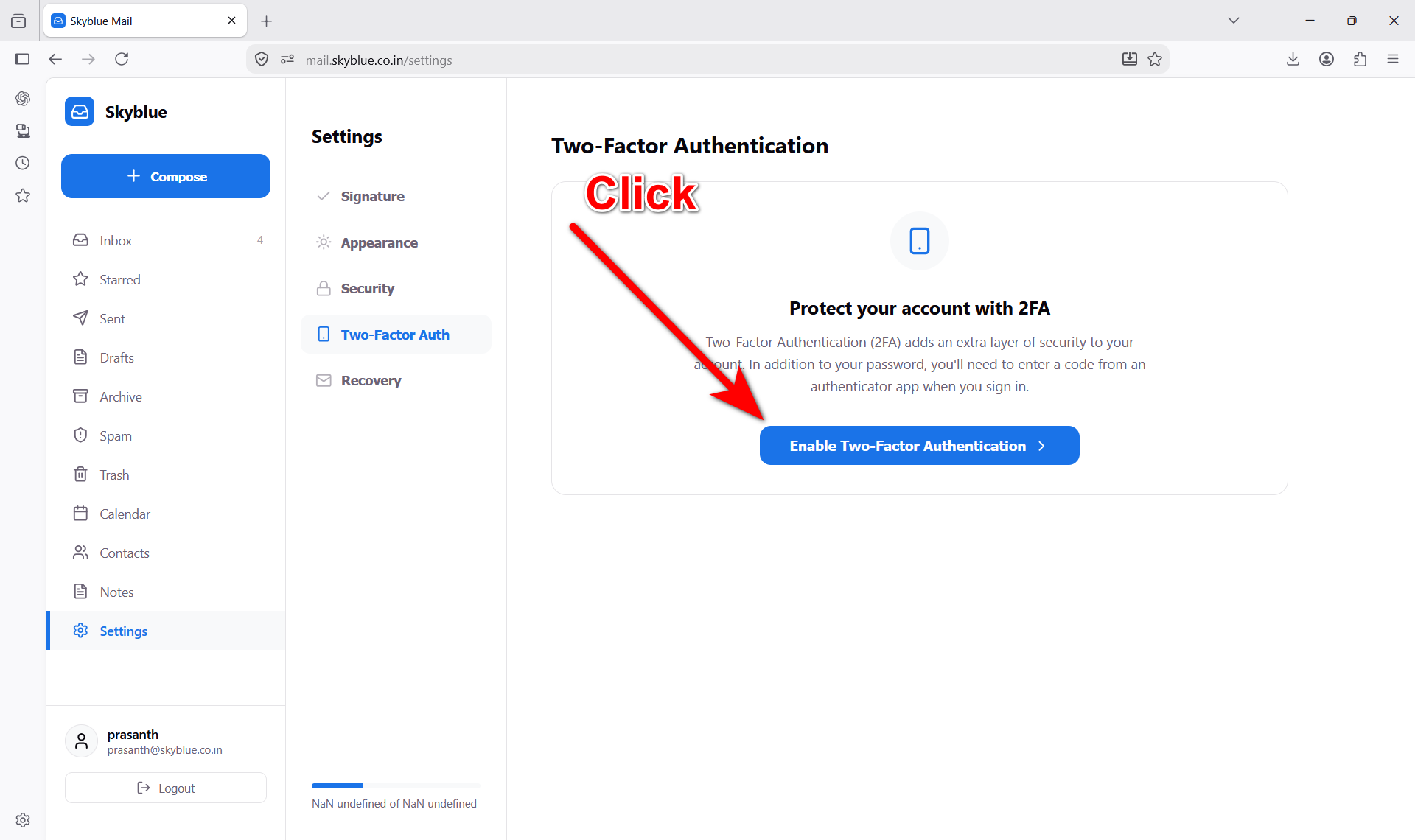
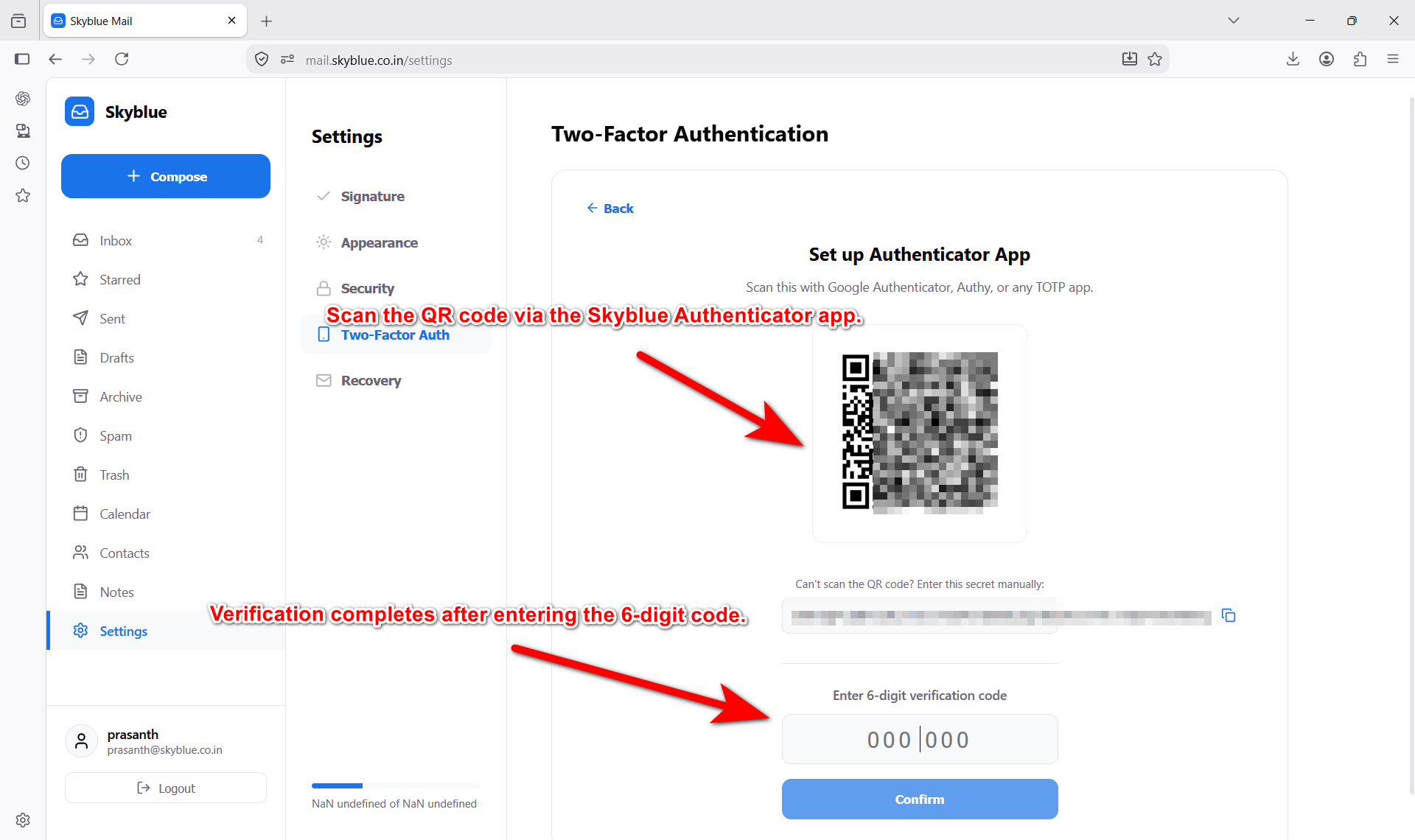
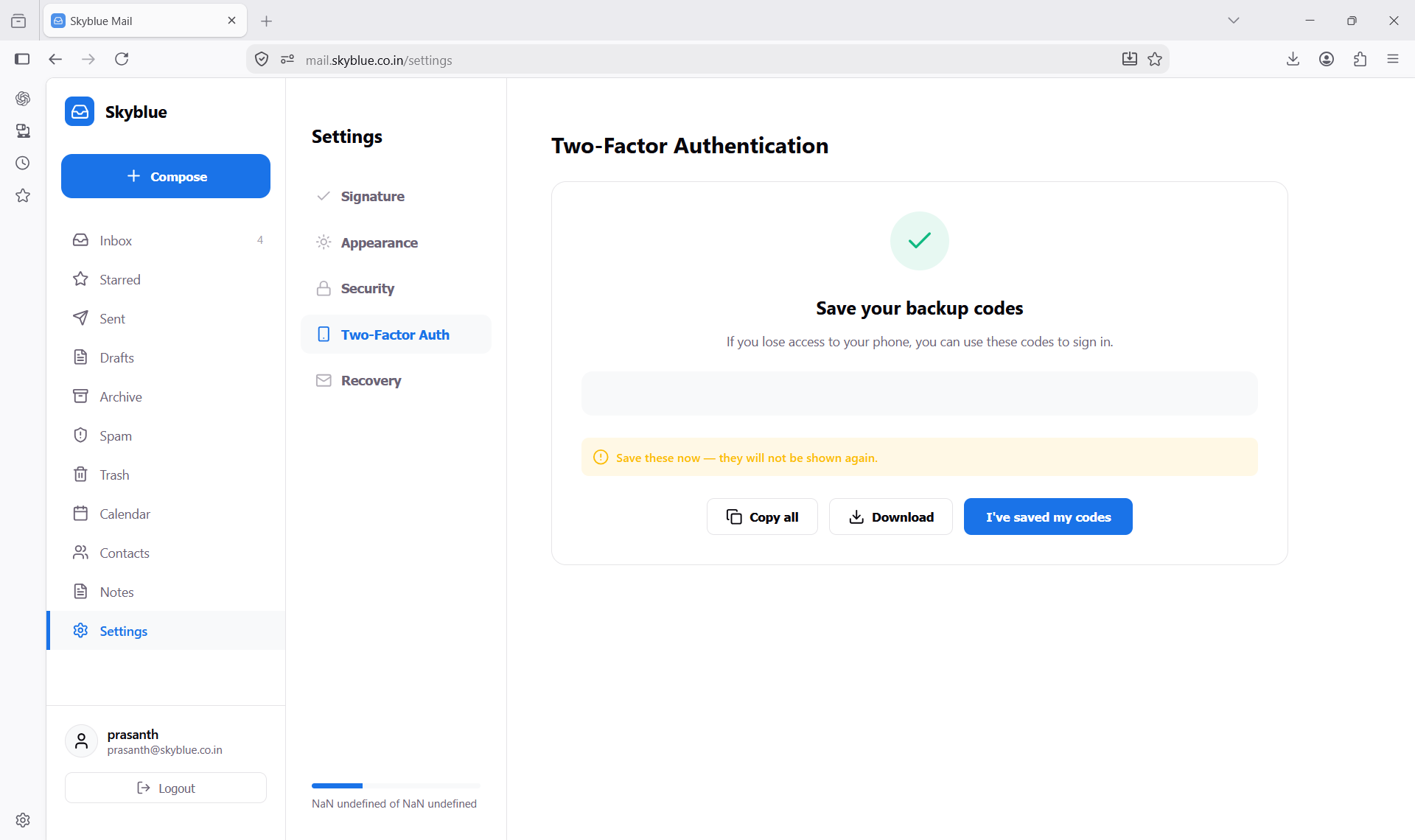
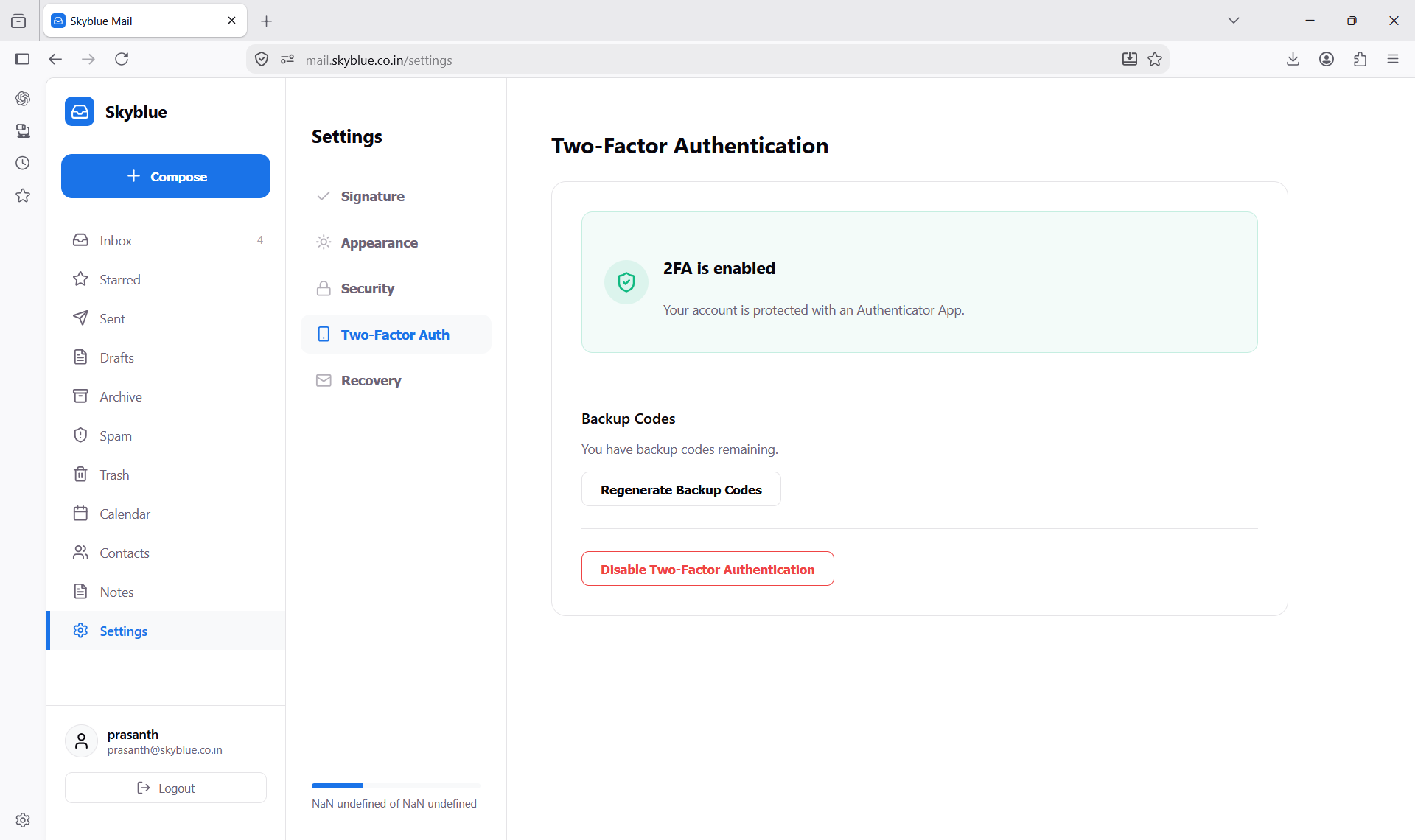
The screens below are from the Skyblue Mail web app (mail.skyblue.co.in),
shown for context only — they are not part of this Android app, but they
illustrate the other end of the pairing: where an account holder turns on
2FA and scans the same kind of QR code the Authenticator app reads.
Screens are numbered in the order this flow happens.
Notes for the review team
- The app never transmits TOTP secrets anywhere — codes are generated on-device from the secret key entered during setup.
- Camera permission is used only to read QR codes during account setup. It is not used at any other time and can be denied entirely if manual entry is used instead.
- No ads, no third-party analytics SDKs, and no account data is shared with parties outside Skyblue.